RoyCo Roofing — 3 active workflows
This console is the full no-sweat build SOP for RoyCo Roofing. It preserves the deep dropdown checklist, client details, website/brand pull, fields, tags, form, workflow steps, QA, and A2P readiness — but only 3 workflows are active now.
- Client
- RoyCo Roofing
- Website
- roycoroof.com
- info@roycoroof.com
- Phone
- (913) 730-7663
- Address
- 1142 Merriam Ln, Kansas City, KS 66103
- Timezone
- America/Chicago (Central Time)
- Current MVP
- Lead form follow-up, estimate follow-up sequences, and review requests for future completed projects (WF04 · WF02 · WF01)
- Future / Optional
- A2P approval → activate SMS versions; WF03 missed-call capture; past-customer reactivation; deeper job/delivery pipeline
- Verified business profile details: legal/business name, address, phone, website, business hours
- Business email sender + access to DNS for SPF/DKIM on roycoroof.com
- GHL phone number forwarding destination — the real RoyCo line
- Internal alert recipient email(s) and default opportunity owner
- Website edit access or embed destination for Sales – Lead Capture Form
- Owner/signature preference: “The RoyCo Roofing Team” unless RoyCo confirms a named signer
- A2P documents for SMS phase: EIN/CP-575 or tax document, legal name/address, authorized representative, Privacy Policy, Terms, consent language
How to use this console while learning HighLevel
You can rely on this console even if you have not finished your HighLevel module yet. Do not try to memorize GHL first. Build one numbered step at a time: click the chart node, read the screen-value card, enter the values in GHL, save, then check it off.
- WF04 protects web form leads. It creates/updates the pipeline, sends the first email response, and alerts the team.
- WF02 protects estimates. Once RoyCo moves someone to Estimate Sent, the workflow follows up until the estimate is won, lost, or completed.
- WF01 protects reputation + repeat revenue. When a job hits Project Completed it asks the homeowner for a Google review, then reminds once if none is left.
- A2P protects SMS compliance. Until it is approved, customer SMS stays off and email/internal alerts carry the build.
- WF03 (Future) missed-call capture is parked in Future Expansion — fully documented, not active in this build.
Royco web brand pull
Royco presents as a premium Kansas City roofing and exteriors company: boutique service, high craftsmanship, reliable homeowner care, and certified roofing expertise. Keep the build clean, direct, and service-forward.
- Positioning
- Kansas City's Premium Roofing Experts
- Core Offer
- Full Service Roofing & Exteriors
- Tile Proof
- 50+ years of tile roofing experience; hundreds of tile roofs installed in Kansas City
- Service Area
- Kansas City Metro, Lawrence / Topeka, Lake of the Ozarks; examples include Leawood, Mission Hills, Overland Park, Olathe, Lee's Summit, Loch Lloyd

- Heading font
- Cambria from Showit-hosted cambria.woff. Source uses serif display titles around 54px desktop / 36px mobile and 34px section headings / 26px mobile.
- Body font
- Montserrat regular. Source uses body around 17px desktop / 14px mobile with 1.6 line height.
- Buttons
- Montserrat 600, uppercase, 0.1em tracking, gold button treatment on navy/white contexts.
- Roof Inspection / Free Inspections
- Roof Repair
- Roof Replacement
- Hail / Storm Damage Inspection
- Gutter Install & Repair
- Tile Roofing: Concrete, Clay, Slate
- Fully Licensed & Insured
- Factory Trained & Certified Installers
- Premium Roofing Solutions
- Locally-owned & Operated
- Emergency Services
- 50+ Years of Experience
- Certification / association logos found in source: Ludowici, Better Business Bureau, GAF Authorized Commercial Roofing Contractor, TRI Manual Certified, Home Builders Association of Greater Kansas City, Select ShingleMaster
| Preview | Asset | Use | URL / Notes |
|---|---|---|---|
| Horizontal logo, dark transparent | GHL Business Profile, email header, form header | https://static.showit.co/200/S8Mk5x9zTC5KUJRCIa4h_g/shared/royco-roofing_horizontal_dark-transparent.png |
 | Circle light logo / favicon | Favicon, small avatar, snapshot notes | https://static.showit.co/200/b_8_r1oy3KguDYNT6P_oIA/310077/royco-roofing_circle-light.png |
 | Share photo / OG image | Social sharing reference, hero backup | https://static.showit.co/1200/qsRlMu9FIpE6M9KVpcjLDg/310077/royco-share_photo.jpg |
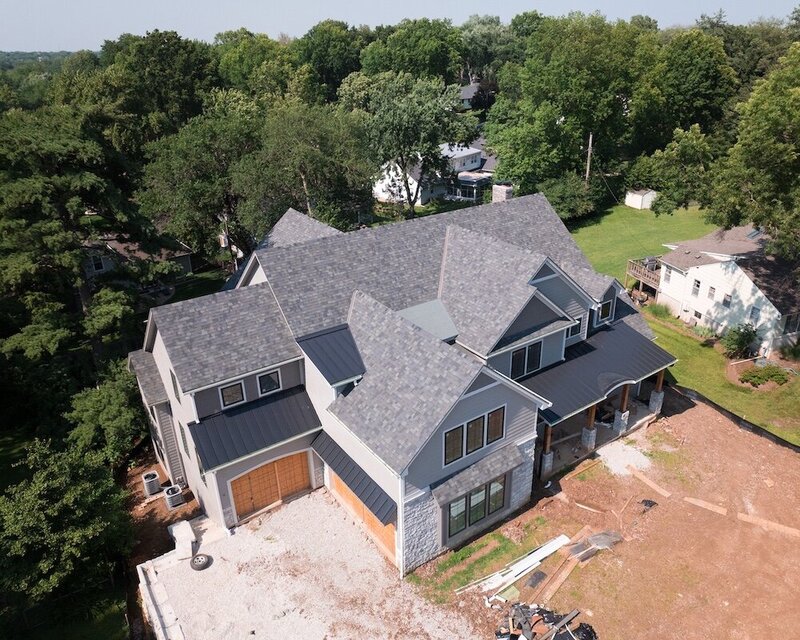 | Hero / full-service roofing image | Landing pages, form thank-you pages | https://static.showit.co/800/eteNm0qRDQhsnm-GQmvgFQ/310077/royco-roofing-kansas-city-best-roofing-contractor-4.jpg |
 | Tile experts image | Tile roofing service section | https://static.showit.co/800/JzyBIz4e0mzYyktO_RbzaA/shared/royco-april-42.jpg |
 | Contact page truck image | Contact / get-estimate page reference | https://static.showit.co/800/xItG9tECDC-qw9kq63DGLQ/shared/royco-april-48.jpg |
 | Trusted by KC background image | Project/community proof section | https://static.showit.co/800/MMlGbZV3EH9DipA2-WEzSQ/shared/royco-april-05.jpg |
 | KC service area map graphic | Service area section | https://static.showit.co/800/3fWagGVY8SuErHCvz_AUlA/shared/kansas-city-royco-roofing.png |
 | Project card: Mission Hills | Proof/project gallery | https://static.showit.co/400/fHcKY2NFmDjHKFMaUjVTDQ/shared/royco-april-52.jpg |
 | Project card: Leawood | Proof/project gallery | https://static.showit.co/400/wrN64W26IJUkf86BTd3CVQ/shared/royco-april-04.jpg |
 | Project card: Loch Lloyd | Proof/project gallery | https://static.showit.co/400/C57Ryzx0xsW62WqVdJZ2tQ/shared/royco-april-35.jpg |
 | Project card: Lee's Summit | Proof/project gallery | https://static.showit.co/400/l7tscJ-N-vFyysLbqbA2XA/shared/royco-april-01.jpg |
 | Gutter icon | Service list | https://static.showit.co/200/60mELJWH8TBynRHNs0jo2A/310077/gutter-icon.png |
 | Free inspection house icon | Service list | https://static.showit.co/200/XjBdapsXqJXzuucgajv0OA/shared/house-icon.png |
 | Roof repair icon | Service list | https://static.showit.co/200/h2azjsiYJ5V5xvkuvt5_kg/shared/roof-icon.png |
 | Roof replacement icon | Service list | https://static.showit.co/200/_P-foGxK-wxDHoFcfV4DYg/shared/roof-replaced-icon.png |
 | Concrete tile icon | Tile roofing section | https://static.showit.co/200/XVXk2PwT8Yk3uky_nAtKDA/shared/concrete-tile.png |
 | Clay tile icon | Tile roofing section | https://static.showit.co/200/9U8xgJ_V1cd_bS77gpXPEg/shared/clay-tile.png |
 | Slate tile icon | Tile roofing section | https://static.showit.co/200/1-o-YtTcuDHb_AUPCJ8FJA/shared/slate-tile.png |
 | Ludowici logo | Certification strip | https://static.showit.co/200/VUdAOJHYaEOcdyEDumv_sw/shared/ludowici-logo.png |
 | Better Business Bureau logo | Certification strip | https://static.showit.co/200/riZYzOIlTeTEjzGy8Ek2qQ/shared/bbb-logo.png |
 | GAF Authorized Commercial Roofing Contractor logo | Certification strip | https://static.showit.co/200/vuZ488c8tpxJwN1BIj1L9w/shared/gaf-logo.png |
 | TRI Manual Certified logo | Certification strip | https://static.showit.co/200/1R7Nm4zgqoQKtd12Id3ssw/shared/tri-certified-logo.png |
 | Home Builders Association of Greater KC logo | Certification strip | https://static.showit.co/200/gBmeZMWCuWZlCJCAxXISEA/shared/home-builders-logo.png |
 | Select ShingleMaster logo | Certification strip | https://static.showit.co/200/zeid0Dp8HnQmcMqxabk_BQ/shared/select-shingle-logo.png |
| Cambria webfont | Heading font source | https://static.showit.co/file/0x_-vr6c85ckC1KSFECzLg/shared/cambria.woff |
- https://www.facebook.com/RoyCoRoof/
- https://www.instagram.com/roycoroofing/
- Confirm before use. Source shows a LinkedIn-style footer icon but the href observed pointed to Instagram.
- TikTok
- Not found on the official site in this scan. Confirm directly with Royco before adding.
Account settings & the easy-to-forget pieces
Business profile, timezone, phone, calendars, team, and compliance footer. Skip these and emails hit spam, alerts go nowhere, and timers fire at the wrong time.
- Business info — name, address, phone, website (Settings → Business Profile). Address feeds the email footer.
- Timezone → America/Chicago (Central Time). Set before building workflows.
- Business hours — keep automated emails in working hours.
- Logo — email headers + booking pages.
- Enable Contact Timezone — for Wait Until time-based steps; prevents timing issues if Royco expands beyond one timezone.
- Name
- RoyCo Roofing
- Website
- roycoroof.com
- info@roycoroof.com
- Phone
- (913) 730-7663
- Address
- 1142 Merriam Ln, Kansas City, KS 66103
- Hours
- 24/7 Live Answering (official contact page). Confirm office hours if needed for calendars.
- Owner
- Confirm preferred owner/signature name with Royco before publish
- Reputation
- Official site says Over 140 Google Reviews - 4.9 Stars. Confirm live Google count before publishing.
- Social
- Facebook: https://www.facebook.com/RoyCoRoof/ · Instagram: https://www.instagram.com/roycoroofing/ · LinkedIn/TikTok: confirm
- Provision a GHL number — voice only, no A2P needed for calls.
- Forward to Royco's real line so calls still ring through.
- Powers the WF03 Missed Call Follow-Up trigger.
- Sales – Roof Inspection Calendar · Sales – Estimate Appointment Calendar
- Set availability + buffers, confirmation & reminder emails; save link as Custom Value Booking Link.
- Add Royco staff as users.
- Set the internal-alert recipient (where missed-call / new-lead alerts land) and the default opportunity owner.
- CAN-SPAM footer on every template: physical address + one-click unsubscribe.
- Without it, emails land in spam and hurt the sending domain.
Sales Pipeline — active stages
One sales pipeline that captures leads, tracks follow-up, gives estimates a clear won/lost destination, and marks finished jobs so review requests can fire. Project Completed is an active stage because moving an opportunity into it triggers WF01. Reactivation stages can be added later.
- Go to Opportunities → Pipelines
- Click Create Pipeline
- Name: Sales Pipeline
- Add stages in exact order: New Lead → Contacted → Estimate Sent → Project Won → Project Completed → Closed Lost
- Save. Copy these names exactly into workflow filters.
- New Lead — auto-created/updated by WF04 after Find Opportunity
- Contacted — RoyCo manually moves after first successful conversation
- Estimate Sent — RoyCo manually moves after estimate is sent; this fires WF02
- Project Won — RoyCo manually moves when job is accepted/booked
- Project Completed — RoyCo manually moves when the roof is finished; this fires WF01 review requests
- Closed Lost — RoyCo manually moves when the lead or estimate is not proceeding
Mermaid source (optional)
flowchart LR
ST1["New Lead"] --> ST2["Contacted"] --> ST3["Estimate Sent"]
ST3 -->|Accepted| ST4["Project Won"]
ST4 -->|Job Done| ST6["Project Completed"]
ST6 -->|Triggers WF01| ST7["Review Request"]
ST3 -->|Not Proceeding| ST5["Closed Lost"]
classDef oppStage fill:#001f3f,color:#ffffff,stroke:#001f3f,font-weight:bold;
class ST1,ST2,ST3,ST4,ST6 oppStage
Workflow folder structure — active build only
No orphan workflows. Only create folders needed for the 3-workflow MVP plus A2P readiness.
- Sales – New Lead Form Follow-Up Workflow – v1
- Sales – Estimate Sent Follow-Up Workflow – v1
- Calls – Missed Call Capture + Alert Workflow – v1
- Used inside WF03/WF04/WF02 as Send Internal Notification actions
- A2P checklist lives in the console first. Build SMS workflows only after approval.
- Future: Compliance – DND Opt Out Handler – v1 when SMS is turned on.
Naming convention — active build
Use short names that tell the builder exactly what the asset does. Do not create review/reactivation assets in this first build.
- Workflow: Calls – Missed Call Capture + Alert Workflow – v1
- Workflow: Sales – New Lead Form Follow-Up Workflow – v1
- Workflow: Sales – Estimate Sent Follow-Up Workflow – v1
- Form: Sales – Lead Capture Form
- Email: Email – New Lead Welcome
- Email: Email – Estimate Sent Day 0
- Email: Email – Estimate Follow Up Day 2
- Email: Email – Estimate Follow Up Day 5
- Email: Email – Estimate Follow Up Day 10
Tags SOP — exact names, usage, and blockers
Tags are case-sensitive. Copy-paste exact names and do not create duplicate variations.
- Go to Settings → Tags
- Click Add Tag
- Copy-paste exact tag name
- Save
- Do not create duplicates
- Tags are case-sensitive
| Tag Name | Required or Optional | Used In | What Breaks If Missing |
|---|---|---|---|
| lead-source-website-form | Required | WF04 source attribution | Website form leads lose source reporting |
| lead-source-missed-call | Future Optional | WF03 source attribution | Missed-call leads lose source reporting |
| lead-source-database-reactivation | Future Optional | WF05 source attribution | Reactivation contacts lose source reporting |
| compliance-dnd-active | Required | Workflow guards, estimate tracking, reporting | compliance-dnd-active logic/reporting breaks if referenced |
| sequence-estimate-follow-up-active | Required | Workflow guards, estimate tracking, reporting | sequence-estimate-follow-up-active logic/reporting breaks if referenced |
| sequence-estimate-follow-up-won | Required | Workflow guards, estimate tracking, reporting | sequence-estimate-follow-up-won logic/reporting breaks if referenced |
| sequence-estimate-follow-up-lost | Required | Workflow guards, estimate tracking, reporting | sequence-estimate-follow-up-lost logic/reporting breaks if referenced |
| sequence-estimate-follow-up-no-reply | Required | Workflow guards, estimate tracking, reporting | sequence-estimate-follow-up-no-reply logic/reporting breaks if referenced |
| stage-new-lead | Required | Workflow tagging and stage reporting | stage-new-lead segment cannot be reported cleanly |
| stage-contacted | Required | Workflow tagging and stage reporting | stage-contacted segment cannot be reported cleanly |
| stage-estimate-sent | Required | Workflow tagging and stage reporting | stage-estimate-sent segment cannot be reported cleanly |
| stage-project-won | Required | Workflow tagging and stage reporting | stage-project-won segment cannot be reported cleanly |
| stage-project-completed | Required | WF01 review request (Project Completed stage) | WF01 cannot tag/segment completed jobs |
| review-left | Required | WF01 Review Left? branch | WF01 cannot detect a completed review |
| stage-closed-lost | Required | Workflow tagging and stage reporting | stage-closed-lost segment cannot be reported cleanly |
| lifecycle-prospect | Required | Lifecycle segmentation and campaign targeting | lifecycle-prospect segment cannot be targeted reliably |
| lifecycle-active-lead | Required | Lifecycle segmentation and campaign targeting | lifecycle-active-lead segment cannot be targeted reliably |
| lifecycle-customer | Required | Lifecycle segmentation and campaign targeting | lifecycle-customer segment cannot be targeted reliably |
| lifecycle-past-customer | Required | Lifecycle segmentation and campaign targeting | lifecycle-past-customer segment cannot be targeted reliably |
| lifecycle-lost-opportunity | Required | Lifecycle segmentation and campaign targeting | lifecycle-lost-opportunity segment cannot be targeted reliably |
| event-form-submitted | Required | Workflow event audit trail | event-form-submitted cannot be audited by tag |
| event-missed-call | Future Optional | Workflow event audit trail | event-missed-call cannot be audited by tag |
| event-estimate-sent | Required | Workflow event audit trail | event-estimate-sent cannot be audited by tag |
| review-request-sent | Required | WF01 already-asked guard + status | WF01 can double-ask the same homeowner |
| event-review-reminder-sent | Required | Workflow event audit trail | event-review-reminder-sent cannot be audited by tag |
| event-reactivation-sent | Future Optional | Workflow event audit trail | event-reactivation-sent cannot be audited by tag |
| event-reactivation-reply | Future Optional | Workflow event audit trail | event-reactivation-reply cannot be audited by tag |
| campaign-estimate-recovery | Required | Campaign reporting | campaign-estimate-recovery performance cannot be segmented |
| campaign-past-customer-reactivation | Future Optional | Campaign reporting | campaign-past-customer-reactivation performance cannot be segmented |
| lead-source-google-business | Optional | Optional reporting/routing only if used | Nothing breaks unless a workflow or report references it |
| lead-source-referral | Optional | Optional reporting/routing only if used | Nothing breaks unless a workflow or report references it |
| lead-source-manual-add | Optional | Optional reporting/routing only if used | Nothing breaks unless a workflow or report references it |
| priority-urgent | Optional | Optional reporting/routing only if used | Nothing breaks unless a workflow or report references it |
| priority-normal | Optional | Optional reporting/routing only if used | Nothing breaks unless a workflow or report references it |
| priority-storm-damage | Optional | Optional reporting/routing only if used | Nothing breaks unless a workflow or report references it |
| routing-sales-team | Optional | Optional reporting/routing only if used | Nothing breaks unless a workflow or report references it |
| routing-estimator | Optional | Optional reporting/routing only if used | Nothing breaks unless a workflow or report references it |
| routing-owner-follow-up | Optional | Optional reporting/routing only if used | Nothing breaks unless a workflow or report references it |
| service-roof-repair | Optional | Optional reporting/routing only if used | Nothing breaks unless a workflow or report references it |
| service-roof-replacement | Optional | Optional reporting/routing only if used | Nothing breaks unless a workflow or report references it |
| service-storm-damage | Optional | Optional reporting/routing only if used | Nothing breaks unless a workflow or report references it |
| campaign-google-review-push | Optional | Optional reporting/routing only if used | Nothing breaks unless a workflow or report references it |
- Apply each workflow-used tag to a test contact
- Confirm workflows using tags fire only when intended
- Confirm no duplicate versions exist
Custom fields — one row per field, in GHL screen order
Build each field top-to-bottom in this exact order: Field type → Object → Field name → Folder name → Description → Options → Placeholder. Contact = person data; Opportunity = job / property / estimate. Review Link is a Custom Value, not a field.
| Field Type | Object | Field Name | Folder Name | Description | Options | Placeholder Text |
|---|---|---|---|---|---|---|
| Dropdown | Contact | Preferred Contact Method | Royco – Contact Profile | How the customer prefers to be contacted. | Email, Phone Call, Text, Any | — (dropdown) |
| Single line | Contact | Lead Source Detail | Royco – Contact Profile | Extra detail on where the lead came from, beyond the source tag. | — | e.g., Google - metal roof |
| Single line | Opportunity | Property Street Address | Royco – Property Details | Street address of the property needing roofing work. | — | e.g., 1142 Merriam Ln |
| Single line | Opportunity | Property City | Royco – Property Details | City where the project is located. | — | e.g., Kansas City |
| Dropdown | Opportunity | Property State | Royco – Property Details | State, for service-area filtering. | KS, MO | — (dropdown) |
| Single line | Opportunity | Property ZIP Code | Royco – Property Details | ZIP / postal code of the project. | — | e.g., 66103 |
| Single line | Opportunity | Property County | Royco – Property Details | County (optional - territory / permit reporting). | — | e.g., Wyandotte |
| Dropdown | Opportunity | Service Interest | Royco – Roofing Job Details | Which roofing service the lead needs. | Roof Inspection, Roof Repair, Roof Replacement, Hail / Storm Damage Inspection, Gutter Install & Repair, Tile Roofing, Not Sure | — (dropdown) |
| Multi line | Opportunity | Roofing Issue | Royco – Roofing Job Details | The customer's description of the roofing problem. | — | e.g., Active leak over kitchen; shingles missing |
| Dropdown | Opportunity | Project Type | Royco – Roofing Job Details | Residential, commercial, or multi-family / HOA. | Residential, Commercial, Multi-Family/HOA | — (dropdown) |
| Number | Opportunity | Roof Age | Royco – Roofing Job Details | Approx. age of the current roof, in years. | — | e.g., 18 |
| Dropdown | Opportunity | Insurance Claim Status | Royco – Roofing Job Details | Claim stage if insurance is involved. | Not Applicable, Claim Started, Claim Approved, Claim Denied, Unknown | — (dropdown) |
| Dropdown | Opportunity | Preferred Inspection Window | Royco – Roofing Job Details | Preferred time of day for roof inspection scheduling. | Morning, Afternoon, Evening, Flexible | — (dropdown) |
| Monetary | Opportunity | Estimate Amount | Royco – Estimate Tracking | Dollar value of the estimate sent. | — | e.g., 12500 |
| Date picker | Opportunity | Estimate Sent Date | Royco – Estimate Tracking | Date the estimate was sent (drives WF02). | — | — (date picker) |
| Date picker | Opportunity | Inspection Date | Royco – Estimate Tracking | Scheduled roof inspection date. | — | — (date picker) |
| Date picker | Opportunity | Project Start Date | Royco – Project Tracking | Date the crew is scheduled to start. | — | — (date picker) |
| Date picker | Opportunity | Project Completed Date | Royco – Project Tracking | Active. Records when the job finished; the Project Completed stage move triggers WF01 review requests. | — | — (date picker) |
| Dropdown | Opportunity | Google Review Status | Royco – Review Tracking | Review request status for the completed job. | Not Requested, Requested, Reminder Sent, Review Left | — (dropdown) |
- Create a test contact
- Create a test opportunity
- Confirm Contact fields appear on Contact
- Confirm Opportunity fields appear on Opportunity
- Confirm dropdown options match exactly
- Confirm Review Link is not created as a field
Custom Values — step-by-step (matches the GHL screen)
Custom Values are account-wide reusable merge values. They are not tied to one contact or one opportunity. Use them for business info and links that repeat across emails, workflows, forms, and templates.
- Create the folder first.
- Do not include the folder name inside the Custom Value name.
- Use clean names like Business Name, not "Royco - Business Name." The folder organizes the value.
- GHL auto-generates the merge key from the Name field.
- After creating each value, copy the actual merge key from GHL and confirm it matches your templates.
- Correct GHL merge format examples are {{custom_values.business_name}} and
{{custom_values.review_link}}. Do not use the singular custom_value format. - If GHL generates a slightly different key, use the key shown inside GHL and update the templates to match.
- Folder
- Royco - Business Info
- Folder
- Royco - Links
- Folder
- Royco - Social Links (optional)
| # | Where in GHL | Name to Type | Value to Type | Folder | Expected Merge Key | Used In | Verify Before Publish | Snapshot Action |
|---|---|---|---|---|---|---|---|---|
| 1 | Settings → Custom Values → Add Custom Value | Business Name | RoyCo Roofing | Royco - Business Info | {{custom_values.business_name}} | Email copy, signatures, templates | Send test email and confirm RoyCo Roofing displays correctly | Clear value before reusable snapshot |
| 2 | Settings → Custom Values → Add Custom Value | Business Phone | (913) 730-7663 | Royco - Business Info | {{custom_values.business_phone}} | Missed call follow-up, email body, signatures | Confirm phone number with Royco | Clear value before snapshot |
| 3 | Settings → Custom Values → Add Custom Value | Business Email | info@roycoroof.com | Royco - Business Info | {{custom_values.business_email}} | Email footer, contact info, templates | Confirm sender email and domain match | Clear value before snapshot |
| 4 | Settings → Custom Values → Add Custom Value | Business Address | 1142 Merriam Ln, Kansas City, KS 66103 | Royco - Business Info | {{custom_values.business_address}} | CAN-SPAM footer, email footer | Confirm physical business address | Clear value before snapshot |
| 5 | Settings → Custom Values → Add Custom Value | Website URL | https://roycoroof.com | Royco - Business Info | {{custom_values.website_url}} | Email templates, footer, links | Click test link | Clear value before snapshot |
| 6 | Settings → Custom Values → Add Custom Value | Business Hours | 24/7 Live Answering | Royco - Business Info | {{custom_values.business_hours}} | Email copy, customer expectations | Confirm hours with Royco | Clear value before snapshot |
| 7 | Settings → Custom Values → Add Custom Value | Service Area | Kansas City Metro, Lawrence / Topeka, Lake of the Ozarks | Royco - Business Info | {{custom_values.service_area}} | Lead qualification copy, templates | Confirm service area with Royco | Clear value before snapshot |
| 8 | Settings → Custom Values → Add Custom Value | Owner Signature Name | The RoyCo Roofing Team (confirm if Drew / Andrew should sign) | Royco - Business Info | {{custom_values.owner_signature_name}} | Email signatures, closing lines | Confirm preferred sign-off | Clear value before snapshot |
| 9 | Settings → Custom Values → Add Custom Value | Review Link | Add Royco Google review URL here | Royco - Links | {{custom_values.review_link}} | Review Request Workflow (WF01) | Click test link; opens Google review page | Clear value before snapshot |
| 10 | Settings → Custom Values → Add Custom Value | Booking Link | Add GHL calendar booking URL here | Royco - Links | {{custom_values.booking_link}} | Lead Form / Estimate Follow-Up, appointment CTAs | Click test link; opens calendar | Clear value before snapshot |
| 11 | Settings → Custom Values → Add Custom Value | Facebook URL | https://www.facebook.com/RoyCoRoof/ | Royco - Social Links | {{custom_values.facebook_url}} | Email footer, future campaigns, brand links | Click test link | Clear value before reusable snapshot |
| 12 | Settings → Custom Values → Add Custom Value | Instagram URL | https://www.instagram.com/roycoroofing/ | Royco - Social Links | {{custom_values.instagram_url}} | Email footer, future campaigns, brand links | Click test link | Clear value before reusable snapshot |
| 13 | Settings → Custom Values → Add Custom Value | LinkedIn URL | Confirm actual Royco LinkedIn URL before use | Royco - Social Links | {{custom_values.linkedin_url}} | Email footer, credibility links, future campaigns | Click test link | Clear value before reusable snapshot |
| 14 | Settings → Custom Values → Add Custom Value | TikTok URL | Confirm actual Royco TikTok URL before use; not found on official site in this scan | Royco - Social Links | {{custom_values.tiktok_url}} | Email footer, future campaigns, brand links | Click test link | Clear value before reusable snapshot |
Sales – Lead Capture Form
The official site currently uses a Showit contact form area. For the GHL build, create this form inside HighLevel, then embed or connect it to the website later. WF04 must filter to Form = Sales – Lead Capture Form.
| # | Field Label | GHL Field / Object | Type | Required | Options / Notes |
|---|---|---|---|---|---|
| 1 | First Name | Contact standard | Text | Yes | Native GHL contact field |
| 2 | Last Name | Contact standard | Text | Yes | Native GHL contact field |
| 3 | Contact standard | Yes | Used for Email-first MVP follow-up | ||
| 4 | Phone | Contact standard | Phone | Yes | Required for calls and future SMS only after consent/A2P |
| 5 | Preferred Contact Method | Contact custom field | Dropdown | No | Phone Call, Text, Email, Any |
| 6 | Service Interest | Opportunity custom field | Dropdown | Yes | Roof Inspection, Roof Repair, Roof Replacement, Hail / Storm Damage Inspection, Gutter Install & Repair, Tile Roofing, Not Sure |
| 7 | Roofing Issue | Opportunity custom field | Multi line | No | Ask: “Tell us what is going on with the roof.” |
| 8 | Property Street Address | Opportunity custom field | Single line | Yes | Project address, not contact mailing address |
| 9 | Property City | Opportunity custom field | Single line | Yes | Project city |
| 10 | Property State | Opportunity custom field | Dropdown | Yes | KS, MO |
| 11 | Property ZIP Code | Opportunity custom field | Single line | Yes | Used for service-area reporting/routing |
| 12 | Roof Age | Opportunity custom field | Number | No | Approximate years old |
| 13 | Insurance Claim Status | Opportunity custom field | Dropdown | No | Not Applicable, Claim Started, Claim Approved, Claim Denied, Unknown |
| 14 | Preferred Inspection Window | Opportunity custom field | Dropdown | No | Morning, Afternoon, Evening, Flexible |
| 15 | How did you hear about us? | Lead Source Detail · Contact custom field | Single line | No | Optional free text or dropdown later |
| 16 | SMS Consent | Consent checkbox / Contact record note | Checkbox | Future SMS only | Keep present but do not activate SMS until A2P approval and consent handling are verified. |
- Hidden/source
- Source = Website Form; Form Name = Sales – Lead Capture Form
- Tags added by WF04
- lead-source-website-form, event-form-submitted, stage-new-lead, lifecycle-prospect
- Opportunity
- Create/update in Sales Pipeline → New Lead after Find Opportunity branch
- Thank-you
- Show: “Thanks — RoyCo Roofing received your request and will follow up shortly.” Optional redirect to booking link only after calendar is ready.
- Test
- Submit one real test form; confirm Contact fields, Opportunity fields, tags, internal notification, welcome email, and WF04 enrollment logs.
Workflow settings at a glance — 3 active workflows
Every workflow must show name, folder, trigger, filter, execution type, stop-on-response, re-enrollment, guards, actions, and exits.
| Workflow | Trigger | Mandatory Filter | Execution | Stop on Response | Re-enroll | Folder |
|---|---|---|---|---|---|---|
| WF04 — New Lead Form Follow-Up | Form Submitted | Form = Sales – Lead Capture Form | Execute Once | ON | OFF | Sales Pipeline |
| WF02 — Estimate Sent Follow-Up | Pipeline Stage Changed | Pipeline = Sales Pipeline AND Stage = Estimate Sent | Execute Once | ON | OFF | Sales Pipeline |
| WF01 — Future Completed Project Review Request | Pipeline Stage Changed | Pipeline = Sales Pipeline AND Stage = Project Completed | Execute Once | ON | OFF | Reviews |
Parked / Future (not active — do not build now):
| Workflow | Trigger | Mandatory Filter | Execution | Stop on Response | Re-enroll | Folder |
|---|---|---|---|---|---|---|
| WF03 — Missed Call Capture + Alert (PARKED) | Call Details | Call status contains any of no-answer AND Call direction is Incoming | Always | ON | ON | Future / Optional |
How to Build Workflows in GHL
Use this before touching any workflow canvas. The left checklist tells you what to finish; each Builder Steps table tells you the exact order to build inside HighLevel.
| Builder Area | Used For |
|---|---|
| 1. Top Bar | Workflow name, Save, Test Workflow, Draft / Publish toggle, Settings |
| 2. Trigger Panel | Click Add Trigger, search trigger name, select trigger, add required filters |
| 3. Canvas | Add actions in order from top to bottom, add If/Else branches, waits, emails, tags, opportunity actions |
| 4. Right-Side Settings Panel | Configure each trigger/action, set branch conditions, select tags, fields, pipeline, stage, email templates, waits |
| 5. Workflow Settings | Execution Type, Stop on Response, Re-enrollment |
| 6. Testing / Logs | Test Workflow, Enrollment History, Execution Logs |
Match the exact GHL builder screen
- Trigger panel
- Choose a Workflow Trigger → Call details
- Trigger name field
- Workflow Trigger Name = Call Details
- Filters
- Call status contains any of no-answer AND Call direction is Incoming
- If / else panel
- Action Name → Scenario Recipe → Branches → None branch
AHow to add the first If / else guard
- On the canvas, click the blue + under the trigger.
- Search If / else and select it.
- In the right panel, set Action Name to Check Do Not Contact.
- For Scenario Recipe, choose Has tag. Do not choose Build your own for this guard.
- Under Branches, rename the first branch to Has DNC Tag.
- Select the tag compliance-dnd-active.
- Leave the None branch as the continue path.
Add Remove From Workflow. This exits the contact.
Add the next real action, normally Find Opportunity or Create/Update Opportunity.
How to Fill Out GHL If/Else Conditions
- Action Name
- The question you are checking (e.g., Check Do Not Contact)
- Branch Name
- The Yes/condition result (e.g., Do Not Contact)
- Select
- The tag, field, stage, or result being checked
- Operator
- Is / Equals / Contains / Has Tag / Exists (use what GHL shows)
- Value
- The exact tag, stage, or field value
- None branch
- The No path — runs when the condition is NOT met
| Action Name | Select | Operator | Value | Yes branch | None branch |
|---|---|---|---|---|---|
| Check Do Not Contact | Contact Tag | Has Tag / Contains | compliance-dnd-active | Exit / Remove From Workflow | Continue |
| Opportunity Found? | Find Opportunity result | Exists / Found | — | Update Opportunity | Create Opportunity |
| Already In Estimate Follow Up? | Contact Tag | Has Tag / Contains | sequence-estimate-follow-up-active | Exit | Continue |
| Won or Closed Lost? | Opportunity Stage | Is | Project Won OR Closed Lost | Remove sequence-estimate-follow-up-active + Exit | Continue follow-up |
| Review Left? | Opportunity Field: Google Review Status | Is | Review Left | End | Send reminder |
How to fill out the Find opportunity panel
Use this exact setup every time the console says Find Opportunity. This matches the right-side GHL panel you are seeing.
FORight-side panel
- Panel header
- Find opportunity
- Action Name
- Find Opportunity
- Opportunity To Be Found
- Most recently created opportunity
- Fields · Row 1
- Pipeline Is Sales Pipeline
WHEREWhere this goes
- Do not add this as a second trigger at the top of the workflow.
- For WF03, add it under the None branch of Check Do Not Contact.
- For WF04, add it under the None branch of Check Do Not Contact.
- After this step, add the branch/condition that separates Found from Not Found / None, then create/update the Sales Pipeline opportunity.
Create / Update Opportunity panel — build it field by field
Follow the fields below from top to bottom. Each instruction matches the order shown in RoyCo's HighLevel panel and tells you exactly what to enter for WF03 or WF04.
OPPComplete the panel from top to bottom
- Panel header
- Confirm the panel header says Create opportunity.
- Action Name
- Click the field and type Update Existing Opportunity → New Lead on a Found branch or Create Opportunity → New Lead on a Not Found branch.
- In Pipeline
- Open the dropdown and select Sales Pipeline.
- In Pipeline Stage
- Open the dropdown and select New Lead.
- Opportunity Name
- Click the tag-shaped merge-field picker → select Contact > Full Name. HighLevel inserts {{contact.name}}. Type - Missed Call immediately after it for WF03. For WF04, type - Roofing Lead.
- Opportunity Source
- Click inside the field and type Missed Call for WF03 or Website Form for WF04.
- Opportunity Value
- Leave this field blank. RoyCo has not supplied a default job value.
- Status
- Open the dropdown. Select Open.
- Add field
- Do not click Add field for this RoyCo MVP. No additional opportunity field is required here.
- Allow opportunity to move to any previous stage in pipeline
- Keep this toggle OFF.
- Allow duplicate opportunities
- Keep this toggle OFF. Find Opportunity checks for an existing Sales Pipeline card first.
- Save
- Click Save Action after checking every value above.
Missed Call Capture + Alert — Future Expansion (parked)
01Workflow Trigger screen — Call Details
- Choose trigger
- Call details
- Workflow Trigger Name
- Call Details
- Filter 1
- Call status contains any of no-answer
- Filter 2
- Call direction is Incoming
- Save
- Click Save Trigger
02Add Action → If / else: Check Do Not Contact
- Action Name
- Check Do Not Contact
- Scenario Recipe
- Has tag
- Branch Name
- Has DNC Tag
- Condition / Tag
- compliance-dnd-active
- None branch
- Leave as the default None branch; this is where the workflow continues.
This branch means the contact should not be contacted. Add Step 03 here.
This branch means no DNC tag was found. Add Step 04 here.
03Has DNC Tag branch → Remove From Workflow
- Action Name
- Remove From Workflow — DNC Exit
- Workflow
- This workflow / current workflow
- After saving
- Do not add more actions on this branch.
04None branch → Find Opportunity
- Action Name
- Find Opportunity
- Opportunity To Be Found
- Most recently created opportunity
- Fields
- Pipeline | Is | Sales Pipeline
- Save
- Click Save Action
05Branch after Find Opportunity → Opportunity Found?
- Found branch
- Use this path when the contact already has an opportunity in Sales Pipeline.
- Not Found / None branch
- Use this path when there is no matching opportunity yet.
Add Step 06A here.
Add Step 06B here.
06AFound branch → Create/Update Opportunity
- Action Name
- Click the field and type Update Existing Opportunity → New Lead.
- In Pipeline
- Open the dropdown and select Sales Pipeline.
- In Pipeline Stage
- Open the dropdown and select New Lead.
- Opportunity Name
- Click the tag-shaped merge-field picker → select Contact > Full Name. After {{contact.name}}, type - Missed Call.
- Opportunity Source
- Click inside the field and type Missed Call.
- Opportunity Value
- Leave this field blank. RoyCo has not supplied a default job value.
- Status
- Open the dropdown and select Open.
- Add field
- Do not click Add field for this action.
- Allow opportunity to move to any previous stage in pipeline
- Keep this toggle OFF.
- Allow duplicate opportunities
- Keep this toggle OFF.
- Save
- Click Save Action after checking every value above.
06BNot Found branch → Create/Update Opportunity
- Action Name
- Click the field and type Create Opportunity → New Lead.
- In Pipeline
- Open the dropdown and select Sales Pipeline.
- In Pipeline Stage
- Open the dropdown and select New Lead.
- Opportunity Name
- Click the tag-shaped merge-field picker → select Contact > Full Name. After {{contact.name}}, type - Missed Call.
- Opportunity Source
- Click inside the field and type Missed Call.
- Opportunity Value
- Leave this field blank. RoyCo has not supplied a default job value.
- Status
- Open the dropdown and select Open.
- Add field
- Do not click Add field for this action.
- Allow opportunity to move to any previous stage in pipeline
- Keep this toggle OFF.
- Allow duplicate opportunities
- Keep this toggle OFF.
- Save
- Click Save Action after checking every value above.
07After both opportunity paths → Add Contact Tag
- Action Name
- Add Missed Call Tags
- Tags
- lead-source-missed-call event-missed-call stage-new-lead
- Save
- Click Save Action
08Send Internal Notification
- Action Name
- Click the field and type Internal Alert — Missed Roofing Call.
- Type of Notification
- Open the dropdown and select Email.
- From Name
- Leave this field blank.
- From Email
- Leave this field blank. Leave both fields blank to use RoyCo's Default Values.
- To User Type
- Open the dropdown and select Particular Users. In the user selector that appears, choose RoyCo's confirmed owner/admin alert recipient.
- Notify followers
- Keep Contact followers OFF. Keep Opportunity followers OFF.
- Cc / Bcc
- Leave Cc and Bcc blank.
- Subject
- Click the field and type Missed roofing call — call back now. Subject is typed directly; it is not a saved asset. The tag-shaped icon beside Subject is the merge-field picker, not a Contact Tag.
- Templates
- Leave Select template blank. Use the custom Message below. WF03 does not require a saved email template.
- Message
- MISSED ROOFING CALL — CALLBACK NEEDED
Name: {{contact.name}}
Phone: {{contact.phone}}
Source: Missed Call
Pipeline: Sales Pipeline
Stage: New Lead
Open the contact and call back immediately. - Save
- Click Save action.
09Add Task
- Action Name
- Create Callback Task
- Task Title
- Call back missed roofing lead
- Assigned To
- Default owner / RoyCo owner/admin
- Due Date
- Today / immediately
- Description
- Missed inbound call captured by WF03. Call back ASAP.
10Add To Notes
- Action Name
- Log Missed Call Note
- Note
- Missed inbound call captured by WF03. Callback task created. SMS not sent because A2P is not approved yet.
- Save
- Click Save Action
11Workflow end / expected result
- Do not add
- Do not add Send SMS yet.
- Expected result
- Contact is captured, opportunity is in New Lead, RoyCo is notified, callback task exists, note is logged.
- Publish rule
- Test with a real missed call before publishing.
| Step | Builder Action | What to enter / settings |
|---|---|---|
| 1 | Create Workflow | Automation → Workflows → Missed Call Automation → Create Workflow → Start From Scratch → rename to Calls – Missed Call Capture + Alert Workflow – v1 |
| 2 | Trigger — Call Details | Filters: Call status contains any of no-answer AND Call direction is Incoming |
| 3 | Workflow Settings | Execution Type = Always; Stop on Response = ON; Re-enrollment = ON |
| 4 | If / Else — Check Do Not Contact | Condition: Contact Tag contains compliance-dnd-active. Yes → Remove From Workflow / End. None → continue. |
| 5 | Find Opportunity | Right panel: Action Name = Find Opportunity; Opportunity To Be Found = Most recently created opportunity; Fields = Pipeline | Is | Sales Pipeline. |
| 6 | If / Else — Opportunity Found? | Found branch → Update Opportunity. Not Found/None branch → Create/Update Opportunity. |
| 7A | Found branch — Create/Update Opportunity | Pipeline = Sales Pipeline; Stage = New Lead; Opportunity Name = {{contact.name}} – Missed Call |
| 7B | None branch — Create/Update Opportunity | Pipeline = Sales Pipeline; Stage = New Lead; Opportunity Name = {{contact.name}} – Missed Call |
| 8 | Add Contact Tag | lead-source-missed-call, event-missed-call, stage-new-lead |
| 9 | Send Internal Notification | To internal alert recipient. Subject: Missed roofing call — call back now. Body includes name, phone, source, and pipeline link. |
| 10 | Add Task | Task title: Call back missed roofing lead. Due: today/immediate. Assigned to default owner. |
| 11 | Add To Notes | Note: Missed inbound call captured by WF03. Callback task created. |
| 12 | SMS placeholder | Do NOT add/publish Send SMS until A2P approval. Add a note in workflow description: SMS Phase 2 after A2P. |
| 13 | Save → Test → Publish | Publish only after the missed-call test passes. |
- Assets Required
- GHL phone number, call forwarding, internal alert recipient, Sales Pipeline, New Lead stage, tags
- If/Else Checks
- Check Do Not Contact; Opportunity Found?
- Exit Conditions
- DND exits; both opportunity branches continue to alert/task; SMS remains OFF
- Test
- Call the GHL number from another phone and hang up; confirm workflow enrollment, opportunity, tags, internal notification, task
| # on chart | Click this inside GHL | Exact value / branch |
|---|---|---|
| 00 | Create Workflow | Automation → Workflows → Folder: Missed Call Automation → Create Workflow → Start From Scratch → Name: Calls – Missed Call Capture + Alert Workflow – v1 |
| 01 | Workflow Trigger = Call Details | Filters: Call status contains any of no-answer AND Call direction is Incoming. Settings: Always | Stop on Response ON | Re-enrollment ON. |
| 02 | If/Else | Name it: Check Do Not Contact. Condition: Contact Tag contains compliance-dnd-active. |
| 03 | Remove From Workflow | Put this on the Yes branch from step 02. This is the DNC exit. |
| 04 | Find Opportunity | Put this on the No/None branch from step 02. Right panel: Action Name = Find Opportunity; Opportunity To Be Found = Most recently created opportunity; Fields = Pipeline | Is | Sales Pipeline. |
| 05 | If/Else | Name it: Opportunity Found?. Found path goes to 06A. None/Not Found path goes to 06B. |
| 06A | Create/Update Opportunity | Found branch. Pipeline = Sales Pipeline; Stage = New Lead; Opportunity Name = {{contact.name}} – Missed Call. |
| 06B | Create/Update Opportunity | None/Not Found branch. Same settings as 06A. This creates the missed-call opportunity. |
| 07 | Add Contact Tag | Add: lead-source-missed-call, event-missed-call, stage-new-lead. |
| 08 | Send Internal Notification | Recipient = RoyCo internal alert email. Subject: Missed roofing call — call back now. Include {{contact.name}} and {{contact.phone}}. |
| 09 | Add Task | Title: Call back missed roofing lead. Due: Immediately / Today. Assigned to default owner. |
| 10 | Add To Notes | Note: Missed inbound call captured by WF03. Callback task created. |
| 11 | No action needed | The workflow naturally ends after Add To Notes. Do not add Send SMS until A2P approval. |
New Lead Form Follow-Up
01Workflow Trigger screen — Form Submitted
- Choose trigger
- Form Submitted
- Workflow Trigger Name
- Form Submitted — Sales Lead Capture
- Filter
- Form | Is | Sales – Lead Capture Form
- Save
- Click Save Trigger
02Add Action → If / else: Check Do Not Contact
- Action Name
- Check Do Not Contact
- Scenario Recipe
- Has tag
- Branch Name
- Has DNC Tag
- Condition / Tag
- compliance-dnd-active
- None branch
- Continue to Find Opportunity
Add Step 03 here.
Add Step 04 here.
03Has DNC Tag branch → Remove From Workflow
- Action Name
- Remove From Workflow — DNC Exit
- Workflow
- This workflow / current workflow
- After saving
- No more actions on this branch.
04None branch → Find Opportunity
- Action Name
- Find Opportunity
- Opportunity To Be Found
- Most recently created opportunity
- Fields
- Pipeline | Is | Sales Pipeline
- Save
- Click Save Action
05Branch after Find Opportunity → Opportunity Found?
- Found branch
- Existing Sales Pipeline opportunity found.
- Not Found / None branch
- No Sales Pipeline opportunity found.
Add Step 06A here.
Add Step 06B here.
06AFound branch → Create/Update Opportunity
- Action Name
- Click the field and type Update Existing Opportunity → New Lead.
- In Pipeline
- Open the dropdown and select Sales Pipeline.
- In Pipeline Stage
- Open the dropdown and select New Lead.
- Opportunity Name
- Click the tag-shaped merge-field picker → select Contact > Full Name. After {{contact.name}}, type - Roofing Lead.
- Opportunity Source
- Click inside the field and type Website Form.
- Opportunity Value
- Leave this field blank. RoyCo has not supplied a default job value.
- Status
- Open the dropdown and select Open.
- Add field
- Do not click Add field for this action.
- Allow opportunity to move to any previous stage in pipeline
- Keep this toggle OFF.
- Allow duplicate opportunities
- Keep this toggle OFF.
- Save
- Click Save Action after checking every value above.
06BNot Found branch → Create/Update Opportunity
- Action Name
- Click the field and type Create Opportunity → New Lead.
- In Pipeline
- Open the dropdown and select Sales Pipeline.
- In Pipeline Stage
- Open the dropdown and select New Lead.
- Opportunity Name
- Click the tag-shaped merge-field picker → select Contact > Full Name. After {{contact.name}}, type - Roofing Lead.
- Opportunity Source
- Click inside the field and type Website Form.
- Opportunity Value
- Leave this field blank. RoyCo has not supplied a default job value.
- Status
- Open the dropdown and select Open.
- Add field
- Do not click Add field for this action.
- Allow opportunity to move to any previous stage in pipeline
- Keep this toggle OFF.
- Allow duplicate opportunities
- Keep this toggle OFF.
- Save
- Click Save Action after checking every value above.
07After both opportunity paths → Add Contact Tag
- Action Name
- Add New Lead Tags
- Tags
- lead-source-website-form stage-new-lead lifecycle-prospect
- Save
- Click Save Action
08Send Internal Notification
- Action Name
- Internal Alert — New Roofing Lead
- Recipient
- Internal alert recipient / RoyCo owner/admin
- Subject
- New roofing lead submitted form
- Body
- Include {{contact.name}}, {{contact.phone}}, {{contact.email}}, service requested, address, and GHL contact/opportunity link.
09Send Email
- Action Name
- Send New Lead Welcome Email
- From Name
- RoyCo Roofing
- From Email
- info@roycoroof.com or verified sender
- Template
- Email – New Lead Welcome
- Subject
- We received your roofing request
- Footer
- CAN-SPAM footer / unsubscribe enabled
10Workflow end / expected result
- Expected result
- Form lead becomes a contact, fields are mapped, opportunity is in New Lead, tags are added, RoyCo is notified, welcome email is sent.
- Publish rule
- Submit the embedded form as a test lead before publishing.
| Step | Builder Action | What to enter / settings |
|---|---|---|
| 1 | Create Workflow | Automation → Workflows → Sales Pipeline → Create Workflow → Start From Scratch → rename to Sales – New Lead Form Follow-Up Workflow – v1 |
| 2 | Trigger — Form Submitted | Filter: Form = Sales – Lead Capture Form |
| 3 | Workflow Settings | Execution Type = Execute Once; Stop on Response = ON; Re-enrollment = OFF |
| 4 | If / Else — Check Do Not Contact | Condition: Contact Tag contains compliance-dnd-active. Yes → Remove From Workflow / End. None → continue. |
| 5 | Find Opportunity | Right panel: Action Name = Find Opportunity; Opportunity To Be Found = Most recently created opportunity; Fields = Pipeline | Is | Sales Pipeline. |
| 6 | If / Else — Opportunity Found? | Found branch → Update Opportunity. Not Found/None branch → Create/Update Opportunity. |
| 7A | Found branch — Create/Update Opportunity | Pipeline = Sales Pipeline; Stage = New Lead; Opportunity Name = {{contact.name}} – Roofing Lead; Opportunity Source = Website Form |
| 7B | None branch — Create/Update Opportunity | Pipeline = Sales Pipeline; Stage = New Lead; Opportunity Name = {{contact.name}} – Roofing Lead; Opportunity Source = Website Form |
| 8 | Add Contact Tag | lead-source-website-form, event-form-submitted, stage-new-lead, lifecycle-prospect |
| 9 | Update Contact Field | Lead Source Detail = Website Form; Last Contacted Date = current date if available |
| 10 | Send Internal Notification | Notify internal alert recipient with name, phone, email, service interest, roofing issue, address, preferred window. |
| 11 | Send Email | Email template: Email – New Lead Welcome |
| 12 | SMS placeholder | SMS OFF until A2P approval and consent checkbox are live/tested. |
| 13 | Save → Test → Publish | Submit real test form. Publish only after form, opportunity, alert, email, and logs pass. |
- Assets Required
- Sales – Lead Capture Form, mapped fields, Sales Pipeline, New Lead stage, tags, Email – New Lead Welcome, internal alert recipient
- If/Else Checks
- Check Do Not Contact; Opportunity Found?
- Exit Conditions
- DND exits; both opportunity branches create/update New Lead intentionally
- Test
- Submit the actual embedded form and confirm contact, fields, opportunity, tags, alert, email, and logs
| # on chart | Click this inside GHL | Exact value / branch |
|---|---|---|
| 00 | Create Workflow | Automation → Workflows → Folder: Sales Pipeline → Create Workflow → Start From Scratch → Name: Sales – New Lead Form Follow-Up Workflow – v1 |
| 01 | Workflow Trigger = Form Submitted | Filter: Form = Sales – Lead Capture Form. Settings: Execute Once | Stop on Response ON | Re-enrollment OFF. |
| 02 | If/Else | Name it: Check Do Not Contact. Condition: Contact Tag contains compliance-dnd-active. |
| 03 | Remove From Workflow | Put this on the Yes branch from step 02. |
| 04 | Find Opportunity | Put this on the No/None branch from step 02. Right panel: Action Name = Find Opportunity; Opportunity To Be Found = Most recently created opportunity; Fields = Pipeline | Is | Sales Pipeline. |
| 05 | If/Else | Name it: Opportunity Found?. Found path goes to 06A. None/Not Found path goes to 06B. |
| 06A | Create/Update Opportunity | Found branch. Pipeline = Sales Pipeline; Stage = New Lead; Opportunity Name = {{contact.name}} – Roofing Lead; Opportunity Source = Website Form. |
| 06B | Create/Update Opportunity | None/Not Found branch. Same settings as 06A. This creates the new website lead opportunity. |
| 07 | Add Contact Tag | Add: lead-source-website-form, stage-new-lead, lifecycle-prospect. |
| 08 | Send Internal Notification | Recipient = RoyCo internal alert email. Subject: New roofing lead from website. |
| 09 | Send Email | Email template: Email – New Lead Welcome. From = RoyCo sender email. SMS remains OFF until A2P. |
| 10 | No action needed | The workflow naturally ends after the welcome email and internal alert. |
Estimate Sent Follow-Up
01Workflow Trigger screen — Pipeline Stage Changed
- Choose trigger
- Pipeline Stage Changed
- Workflow Trigger Name
- Pipeline Stage Changed — Estimate Sent
- Filter 1
- Pipeline | Is | Sales Pipeline
- Filter 2
- Stage | Is | Estimate Sent
- Save
- Click Save Trigger
02Add Action → If / else: Check Do Not Contact
- Action Name
- Check Do Not Contact
- Scenario Recipe
- Has tag
- Branch Name
- Has DNC Tag
- Condition / Tag
- compliance-dnd-active
- None branch
- Continue to Already In Follow-Up?
Add Step 03 here.
Add Step 04 here.
03Has DNC Tag branch → Remove From Workflow
- Action Name
- Remove From Workflow — DNC Exit
- Workflow
- This workflow / current workflow
04None branch → If / else: Already In Follow-Up?
- Action Name
- Already In Estimate Follow-Up?
- Scenario Recipe
- Has tag
- Branch Name
- Already Open
- Condition / Tag
- sequence-estimate-follow-up-active
- None branch
- Continue to Add Contact Tag
Add Step 05 here. This prevents duplicate estimate sequences.
Add Step 06 here. This starts the estimate chase.
05Already Open branch → Remove From Workflow
- Action Name
- Remove From Workflow — Already In Estimate Follow-Up
- Workflow
- This workflow / current workflow
06None branch → Add Contact Tag
- Action Name
- Add Estimate Open Tag
- Tag
- sequence-estimate-follow-up-active
07Update Contact Field
- Action Name
- Set Estimate Sent Date
- Field
- Estimate Sent Date
- Value
- Current date / today
- Save
- Click Save Action
08Send Email Day 0
- Action Name
- Send Estimate Follow-Up Day 0
- Template
- Email – Estimate Sent Day 0
- Subject
- Your RoyCo Roofing estimate
- Footer
- CAN-SPAM footer / unsubscribe enabled
09Wait 2 Days
- Action Name
- Wait 2 Days
- Wait Type
- Wait for a specific amount of time
- Duration
- 2 days
- Timezone
- Account timezone: America/Chicago
10If / else: Won or Lost?
- Action Name
- Check Project Won or Closed Lost — Day 2
- Branch Name
- Won or Lost
- Condition
- Opportunity Stage is Project Won OR Opportunity Stage is Closed Lost
- None branch
- Continue to Send Email Day 2
Add Step 10A here.
Add Step 11 here.
10AWon or Lost branch → Remove Contact Tag
- Action Name
- Remove Estimate Open Tag — Won/Lost Day 2
- Tag
- sequence-estimate-follow-up-active
- After saving
- No more actions on this branch.
11None branch → Send Email Day 2
- Action Name
- Send Estimate Follow-Up Day 2
- Template
- Email – Estimate Follow-Up Day 2
- Subject
- Any questions about your roofing estimate?
12Wait 3 Days
- Action Name
- Wait 3 Days
- Wait Type
- Wait for a specific amount of time
- Duration
- 3 days
- Timezone
- America/Chicago
13If / else: Won or Lost?
- Action Name
- Check Project Won or Closed Lost — Day 5
- Branch Name
- Won or Lost
- Condition
- Opportunity Stage is Project Won OR Opportunity Stage is Closed Lost
- None branch
- Continue to Send Email Day 5
Add Step 13A here.
Add Step 14 here.
13AWon or Lost branch → Remove Contact Tag
- Action Name
- Remove Estimate Open Tag — Won/Lost Day 5
- Tag
- sequence-estimate-follow-up-active
- After saving
- No more actions on this branch.
14None branch → Send Email Day 5
- Action Name
- Send Estimate Follow-Up Day 5
- Template
- Email – Estimate Follow-Up Day 5
- Subject
- Following up on your RoyCo Roofing estimate
15Wait 5 Days
- Action Name
- Wait 5 Days
- Wait Type
- Wait for a specific amount of time
- Duration
- 5 days
- Timezone
- America/Chicago
16If / else: Won or Lost?
- Action Name
- Check Project Won or Closed Lost — Day 10
- Branch Name
- Won or Lost
- Condition
- Opportunity Stage is Project Won OR Opportunity Stage is Closed Lost
- None branch
- Continue to Send Email Day 10
Add Step 16A here.
Add Step 17 here.
16AWon or Lost branch → Remove Contact Tag
- Action Name
- Remove Estimate Open Tag — Won/Lost Day 10
- Tag
- sequence-estimate-follow-up-active
- After saving
- No more actions on this branch.
17None branch → Send Email Day 10
- Action Name
- Send Estimate Follow-Up Day 10
- Template
- Email – Estimate Follow-Up Day 10
- Subject
- Should we keep your roofing estimate open?
18Add Task
- Action Name
- Create Final Estimate Follow-Up Task
- Task Title
- Final follow-up on open roofing estimate
- Assigned To
- Default owner / RoyCo owner/admin
- Due Date
- Today
- Description
- Estimate follow-up sequence completed. Call or manually review before closing/lost.
19Remove Contact Tag
- Action Name
- Remove Estimate Open Tag — Sequence Complete
- Tag
- sequence-estimate-follow-up-active
20Workflow end / expected result
- Expected result
- Estimate follow-up completed, final task created, sequence-estimate-follow-up-active removed.
- Manual next step
- RoyCo decides whether to move opportunity to Project Won or Closed Lost.
- Publish rule
- Test Project Won, Closed Lost, and no-response paths before publishing.
| Step | Builder Action | What to enter / settings |
|---|---|---|
| 1 | Create Workflow | Automation → Workflows → Sales Pipeline → Create Workflow → Start From Scratch → rename to Sales – Estimate Sent Follow-Up Workflow – v1 |
| 2 | Trigger — Pipeline Stage Changed | Filters: Pipeline = Sales Pipeline AND Stage = Estimate Sent |
| 3 | Workflow Settings | Execution Type = Execute Once; Stop on Response = ON; Re-enrollment = OFF |
| 4 | If / Else — Check Do Not Contact | Contact Tag contains compliance-dnd-active. Yes → Remove From Workflow / End. None → continue. |
| 5 | If / Else — Already In Estimate Follow-Up? | Contact Tag contains sequence-estimate-follow-up-active. Yes → End. None → continue. |
| 6 | Add Contact Tag | event-estimate-sent, sequence-estimate-follow-up-active, stage-estimate-sent |
| 7 | Update Contact Field | Estimate Sent Date = Current Date. Estimate Amount only if RoyCo enters amount manually. |
| 8 | Send Email | Email template: Email – Estimate Sent Day 0 |
| 9 | Wait | 2 days |
| 10 | If / Else — Won or Closed Lost? | Condition: Opportunity Stage is Project Won OR Closed Lost. Yes → remove sequence-estimate-follow-up-active and End. None → continue. |
| 11 | Send Email | Email template: Email – Estimate Follow Up Day 2 |
| 12 | Wait | 3 days |
| 13 | If / Else — Won or Closed Lost? | Yes → cleanup/end. None → Day 5. |
| 14 | Send Email | Email template: Email – Estimate Follow Up Day 5 |
| 15 | Wait | 5 days |
| 16 | If / Else — Won or Closed Lost? | Yes → cleanup/end. None → Day 10. |
| 17 | Send Email | Email template: Email – Estimate Follow Up Day 10 |
| 18 | Add Task | Task title: Manual final call on estimate. Assigned to default owner. Due today. |
| 19 | Cleanup | Remove tag sequence-estimate-follow-up-active. Optional add lifecycle-lost-opportunity only if RoyCo marks Closed Lost manually. |
| 20 | Save → Test → Publish | Publish after Day 0 and branch cleanup tests pass. |
- Assets Required
- Sales Pipeline, Estimate Sent stage, Project Won stage, Closed Lost stage, estimate email templates, sequence-estimate-follow-up-active, Estimate Sent Date field
- If/Else Checks
- Check Do Not Contact; Already In Estimate Follow-Up?; Won or Closed Lost?
- Exit Conditions
- DND exits; Already Open exits; Project Won/Closed Lost remove sequence-estimate-follow-up-active and end; final cleanup removes tag
- Test
- Move test opportunity to Estimate Sent; confirm Day 0, tags, field update, Project Won/Closed Lost cleanup path
| # on chart | Click this inside GHL | Exact value / branch |
|---|---|---|
| 00 | Create Workflow | Automation → Workflows → Folder: Sales Pipeline → Create Workflow → Start From Scratch → Name: Sales – Estimate Sent Follow-Up Workflow – v1 |
| 01 | Workflow Trigger = Pipeline Stage Changed | Filters: Pipeline = Sales Pipeline AND Stage = Estimate Sent. Settings: Execute Once | Stop on Response ON | Re-enrollment OFF. |
| 02 | If/Else | Name: Check Do Not Contact. Condition: Contact Tag contains compliance-dnd-active. |
| 03 | Remove From Workflow | Yes branch from 02. |
| 04 | If/Else | Name: Already In Estimate Follow-Up?. Condition: Contact Tag contains sequence-estimate-follow-up-active. |
| 05 | Remove From Workflow | Yes branch from 04. This prevents duplicate estimate chase enrollment. |
| 06 | Add Contact Tag | No/None branch from 04. Add sequence-estimate-follow-up-active. |
| 07 | Update Contact Field | Field = Estimate Sent Date. Value = current date / workflow enrollment date. |
| 08 | Send Email | Email template: Email – Estimate Follow-Up Day 0. |
| 09 | Wait | Wait for 2 days. |
| 10 | If/Else | Name: Won or Closed Lost?. Condition: Opportunity Status = Won OR Pipeline Stage = Closed Lost. |
| 10A | Remove Contact Tag | Yes branch from 10. Remove sequence-estimate-follow-up-active, then end. |
| 11 | Send Email | No/None branch from 10. Email template: Email – Estimate Follow-Up Day 2. |
| 12 | Wait | Wait for 3 days. |
| 13 | If/Else | Name: Won or Closed Lost?. Same condition as 10. |
| 13A | Remove Contact Tag | Yes branch from 13. Remove sequence-estimate-follow-up-active, then end. |
| 14 | Send Email | No/None branch from 13. Email template: Email – Estimate Follow-Up Day 5. |
| 15 | Wait | Wait for 5 days. |
| 16 | If/Else | Name: Won or Closed Lost?. Same condition as 10. |
| 16A | Remove Contact Tag | Yes branch from 16. Remove sequence-estimate-follow-up-active, then end. |
| 17 | Send Email | No/None branch from 16. Email template: Email – Estimate Follow-Up Day 10. |
| 18 | Add Task | Title: Manual follow-up on estimate. Due: today. Assigned to default owner/admin. |
| 19 | Remove Contact Tag | Remove sequence-estimate-follow-up-active. |
| 20 | No action needed | The estimate chase ends cleanly after cleanup. |
Future Completed Project — Review Request
01Workflow Trigger screen — Pipeline Stage Changed
- Choose trigger
- Pipeline Stage Changed
- Workflow Trigger Name
- Stage Changed — Project Completed
- Filter 1
- Pipeline | Is | Sales Pipeline
- Filter 2
- Stage | Is | Project Completed
- Save
- Click Save Trigger
02Add Action → If / Else: Check Do Not Contact
- Action Name
- Check Do Not Contact
- Scenario Recipe
- Has tag
- Branch Name
- Has DNC Tag
- Condition / Tag
- compliance-dnd-active
- None branch
- Continue to Already Asked check
Add Step 03 here.
Add Step 04 here.
03Has DNC Tag branch → Remove From Workflow
- Action Name
- Remove From Workflow — DNC Exit
- Workflow
- This workflow / current workflow
- After saving
- No more actions on this branch.
04None branch → If / Else: Already Asked?
- Action Name
- Already Asked?
- Scenario Recipe
- Has tag
- Branch Name
- Already Requested
- Condition / Tag
- review-request-sent
- None branch
- Continue to Wait
Add Step 05 here.
Add Step 06 here.
05Already Requested branch → Remove From Workflow
- Action Name
- Remove From Workflow — Already Asked
- Workflow
- This workflow / current workflow
- After saving
- No more actions on this branch.
06None branch → Wait
- Action Name
- Wait — Settle Before Asking
- Wait Type
- Time Delay
- Duration
- 2 days
- Why
- Give the crew time to finish cleanup before the review ask lands.
07Send Email — Review Request
- Action Name
- Send Review Request Email
- From Name
- RoyCo Roofing
- From Email
- info@roycoroof.com or verified sender
- Template
- Email – Review Request Day 0
- Subject
- How did we do on your roof?
- Review link
- Body must include {{custom_values.review_link}}
- Footer
- CAN-SPAM footer / unsubscribe enabled
08Add Contact Tag
- Action Name
- Tag Review Requested
- Tags
- review-request-sent stage-project-completed
- Save
- Click Save Action
09Update Contact Field — Google Review Status
- Action Name
- Set Review Status = Requested
- Field
- Google Review Status
- Value
- Requested
- Save
- Click Save Action
10Wait
- Action Name
- Wait — Reminder Gap
- Wait Type
- Time Delay
- Duration
- 4 days
- Why
- Give the homeowner time to leave a review before any reminder.
11Add Action → If / Else: Review Left?
- Action Name
- Review Left?
- Scenario Recipe
- Has tag
- Branch Name
- Review Left
- Condition / Tag
- review-left
- None branch
- Continue to Reminder
Add Step 12 here.
Add Step 14 here.
12Review Left branch → Update Contact Field
- Action Name
- Set Review Status = Review Left
- Field
- Google Review Status
- Value
- Review Left
- Optional tag
- review-left
- Save
- Click Save Action
13Review Left branch end — Review Captured
- Expected result
- Homeowner left a review; status is recorded; no reminder is sent.
14None branch → Send Email — Review Reminder
- Action Name
- Send Review Reminder Email
- From Name
- RoyCo Roofing
- From Email
- info@roycoroof.com or verified sender
- Template
- Email – Review Reminder Day 3
- Subject
- A quick favor about your new roof
- Review link
- Body must include {{custom_values.review_link}}
- Footer
- CAN-SPAM footer / unsubscribe enabled
15Create Manual Task
- Action Name
- Task — Personal Review Ask
- Task Title
- Call {{contact.name}} for a Google review
- Assigned To
- Default owner / RoyCo admin
- Due
- 2 days from now
16Update Contact Field — Google Review Status
- Action Name
- Set Review Status = Reminder Sent
- Field
- Google Review Status
- Value
- Reminder Sent
- Save
- Click Save Action
17Workflow end / expected result
- Expected result
- Completed-project contact receives a review ask, then a reminder if no review, with status tracked end to end.
- Publish rule
- Move a real test opportunity into Project Completed and confirm the email, tags, field, and reminder branch before publishing.
| Step | Builder Action | What to enter / settings |
|---|---|---|
| 1 | Create Workflow | Automation → Workflows → Reviews → Create Workflow → Start From Scratch → rename to Reviews – Future Completed Project Review Request Workflow – v1 |
| 2 | Trigger — Pipeline Stage Changed | Filter: Pipeline = Sales Pipeline AND Stage = Project Completed |
| 3 | Workflow Settings | Execution Type = Execute Once; Stop on Response = ON; Re-enrollment = OFF |
| 4 | If / Else — Check Do Not Contact | Condition: Contact Tag contains compliance-dnd-active. Yes → Remove From Workflow. None → continue. |
| 5 | If / Else — Already Asked? | Condition: Contact Tag contains review-request-sent. Yes → Remove From Workflow. None → continue. |
| 6 | Wait | 2 days. |
| 7 | Send Email | Template: Email – Review Request Day 0; body must contain {{custom_values.review_link}}. |
| 8 | Add Contact Tag | review-request-sent, stage-project-completed |
| 9 | Update Contact Field | Google Review Status = Requested |
| 10 | Wait | 4 days. |
| 11 | If / Else — Review Left? | Condition: Contact Tag contains review-left. Yes → status update + end. None → reminder. |
| 12 | Update Contact Field (Yes) | Google Review Status = Review Left; optional review-left tag. |
| 13 | Send Email (None) | Template: Email – Review Reminder Day 3; include {{custom_values.review_link}}. |
| 14 | Create Task | Call {{contact.name}} for a Google review; assign default owner. |
| 15 | Update Contact Field | Google Review Status = Reminder Sent |
| 16 | SMS placeholder | SMS OFF until A2P approval. |
| 17 | Save → Test → Publish | Move a real test opportunity into Project Completed. Publish only after email, tags, field, and reminder branch pass. |
- Assets Required
- Sales Pipeline, Project Completed stage, Review Link custom value (real Google URL), Google Review Status field, Email – Review Request Day 0, Email – Review Reminder Day 3, tags review-request-sent / review-left
- If/Else Checks
- Check Do Not Contact; Already Asked?; Review Left?
- Exit Conditions
- DND exits; already-asked exits; Review Left branch ends after status update; reminder branch ends after reminder + status
- Test
- Move a real test opportunity into Project Completed and confirm wait, email, link, tags, field, reminder branch, and logs
| # on chart | Click this inside GHL | Exact value / branch |
|---|---|---|
| 00 | Create Workflow | Automation → Workflows → Folder: Reviews → Create Workflow → Start From Scratch → Name: Reviews – Future Completed Project Review Request Workflow – v1 |
| 01 | Workflow Trigger = Pipeline Stage Changed | Filter: Pipeline = Sales Pipeline AND Stage = Project Completed. Settings: Execute Once | Stop on Response ON | Re-enrollment OFF. |
| 02 | If/Else | Name it: Check Do Not Contact. Condition: Contact Tag contains compliance-dnd-active. |
| 03 | Remove From Workflow | Put this on the Yes branch from step 02. |
| 04 | If/Else | Name it: Already Asked?. Condition: Contact Tag contains review-request-sent. None path continues. |
| 05 | Remove From Workflow | Put this on the Yes branch from step 04. |
| 06 | Wait | 2 days on the None branch. |
| 07 | Send Email | Template: Email – Review Request Day 0. Body merge {custom_values.review_link}. |
| 08 | Add Contact Tag | Add: review-request-sent, stage-project-completed. |
| 09 | Update Contact Field | Google Review Status = Requested. |
| 10 | Wait | 4 days. |
| 11 | If/Else | Name it: Review Left?. Condition: Contact Tag contains review-left. Yes → 12. None → 14. |
| 12 | Update Contact Field | Review Left branch. Google Review Status = Review Left. |
| 13 | No action needed | Review Left branch ends after the status update. |
| 14 | Send Email | None branch. Template: Email – Review Reminder Day 3. SMS remains OFF until A2P. |
| 15 | Create Task | Call {contact.name} for a Google review; assign default owner. |
| 16 | Update Contact Field | Google Review Status = Reminder Sent. |
| 17 | No action needed | The workflow naturally ends after the reminder and status update. |
A2P checklist — inside the console
This is the SMS readiness checklist. It is included now so the future SMS version can launch without guessing, but it does not block the email-first MVP.
- Confirm RoyCo legal business name exactly as on tax/EIN records
- Collect EIN and CP-575 / 147C / W9 or equivalent tax document
- Confirm legal address exactly matches registration documents
- Collect authorized representative name, title, phone, email, and address
- Confirm website is live over HTTPS and business name is present
- Publish or verify Privacy Policy page
- Publish or verify Terms & Conditions page
- Add SMS consent checkbox to forms before SMS launch
- Checkbox must not be pre-checked
- Consent language must say what messages they receive and include message/data rates + STOP opt-out
- Form must not bury SMS consent inside generic marketing language
I agree to receive text messages from RoyCo Roofing about my roofing request, inspection, estimate, or follow-up. Message and data rates may apply. Message frequency varies. Reply STOP to opt out.
- Go to Settings → Phone Numbers / Trust Center
- Complete Business Profile and make sure details match legal documents
- Submit Brand Registration
- Submit Campaign Registration using the appropriate customer-care / mixed conversational use case
- Describe how contacts opt in: website form checkbox, phone call follow-up, appointment/estimate request
- Submit at least two distinct sample SMS messages with business name and opt-out language
- Wait for brand/campaign approval before publishing SMS
- Duplicate WF03, WF04, WF02 before adding SMS
- Add Send SMS action after internal guard checks
- Keep first SMS compliant with opt-out language
- Build and test Compliance – DND Opt Out Handler – v1
- Test STOP → DND active → compliance-dnd-active tag → removed from active SMS workflows
- Publish SMS versions only after live test passes
Ready-to-paste email copy — active build (WF04 · WF02 · WF01)
Use these for the email-first build. WF04 welcomes new leads, WF02 chases estimates, and WF01 requests Google reviews once a job is Project Completed. Keep SMS copy in the A2P section until approval.
Build order — no-sweat sequence
Build in this exact order. Do not start workflows until the pipeline, fields, tags, values, form, and email templates exist.
- Verify client info, website/brand assets, sender domain, timezone, phone forwarding, internal alert owner
- Pipeline, folders, naming, tags, fields, custom values, lead form, email templates
- WF04 New Lead Form Follow-Up
- WF02 Estimate Sent Follow-Up
- WF01 Future Completed Project Review Request
- WF03 Missed Call Capture — parked in Future Expansion (not in this build)
- Gather legal docs, website consent, Privacy/Terms, Trust Center submission. SMS still OFF.
- Run every test, check logs, publish one workflow at a time, delete test data, record Loom/walkthrough
QA & testing checklist — active build (WF04 · WF02 · WF01)
| Step | QA Step |
|---|---|
| 1 | Confirm timezone = America/Chicago and sender domain/SPF/DKIM are verified |
| 2 | Confirm Sales Pipeline stages exactly: New Lead, Contacted, Estimate Sent, Project Won, Project Completed, Closed Lost |
| 3 | Confirm required tags exist with exact spelling and no duplicates |
| 4 | Confirm contact and opportunity custom fields exist and are mapped on the form |
| 5 | Submit Sales – Lead Capture Form as a test lead |
| 6 | Confirm WF04 creates/updates opportunity, tags lead, sends internal notification, sends welcome email |
| 7 | Move a test opportunity to Project Completed |
| 8 | Confirm WF01 enrolls, sends Review Request email with the live Review Link, tags review-request-sent, and the reminder branch fires only when no review is left |
| 9 | Move test opportunity to Estimate Sent |
| 10 | Confirm WF02 sends Day 0 email, adds sequence-estimate-follow-up-active, updates Estimate Sent Date |
| 11 | Test Project Won branch and Closed Lost branch cleanup |
| 12 | Check Enrollment History and Execution Logs for all 3 active workflows (WF04, WF02, WF01) |
| 13 | Confirm no duplicate opportunities were created |
| 14 | Confirm SMS actions are not active/published |
| 15 | Publish one workflow at a time only after test passes |
| 16 | Delete test contacts/opportunities before handoff |
- Check trigger filters first
- Check if workflow is still Draft
- Check execution settings and re-enrollment
- Check if test contact already completed Execute Once workflow
- Check Enrollment History and Execution Logs
Launch blockers
If any of these are true, do not launch the affected piece.
- SPF/DKIM not verified = emails may fail or land in spam
- Lead form not connected = WF04 blocked
- GHL phone / forwarding not set = WF03 blocked
- Internal alert recipient missing = missed calls/new leads can be hidden
- Pipeline stage names do not match workflow filters = WF02 may not fire
- Closed Lost missing = lost estimates have no clean destination
- A2P not approved = SMS blocked; email MVP still launches
- SMS consent checkbox missing = do not activate SMS
- Timezone wrong = waits and reporting fire at wrong time
- No default owner = opportunities/tasks can be orphaned
Client handoff and future snapshot
For this first build, hand off the working RoyCo sub-account. Snapshot only after QA is clean and RoyCo-specific values are documented.
- Record a short Loom: pipeline, form, three workflows, how to move Contacted / Estimate Sent / Won / Closed Lost
- Show where missed-call tasks appear
- Show how estimate follow-up stops when lead replies or is moved to Project Won / Closed Lost
- Document which SMS actions remain OFF until A2P approval
- Export or screenshot custom fields/tags/custom values for future snapshot cleanup
- Delete test contacts and opportunities
Master flow — active build (WF04 · WF02 · WF01)
The Lead Form creates/updates New Lead (WF04). Estimate Sent triggers the chase (WF02). When a job reaches Project Completed, WF01 requests a Google review. WF03 missed-call capture is parked in Future Expansion.
Mermaid source (optional)
flowchart TD
TR1(["⚡ Lead Form Submitted (WF04)"]) --> FO1["Find Opportunity"]
FO1 --> D1{"Opportunity Found?"}
D1 -->|Found| UO1["Update Opportunity"]
D1 -->|Not Found| CO1["Create Opportunity"]
UO1 --> ST1["New Lead"]
CO1 --> ST1
ST1 --> ST2["Contacted"]
ST2 --> ST3["Estimate Sent"]
ST3 --> WF02["WF02 Estimate Follow-Up"]
WF02 --> D2{"Won or Lost?"}
D2 -->|Won| ST4["Project Won"]
D2 -->|Lost| ST5["Closed Lost"]
D2 -->|No reply| M1["👤 Final Call Task"]
ST4 -->|Job done| ST6["Project Completed"]
ST6 --> WF01["WF01 Review Request"]
WF01 --> RV["Review Left / Reminder"]
P["WF03 Missed Call — parked (Future Expansion)"]
classDef oppStage fill:#001f3f,color:#ffffff,stroke:#001f3f,font-weight:bold;
classDef trigger fill:#4a90d9,color:#ffffff,stroke:#4a90d9,font-weight:bold;
classDef endNode fill:#2ecc71,color:#ffffff,stroke:#27ae60,font-weight:bold;
classDef manualAction fill:#e67e22,color:#ffffff,stroke:#d35400,font-weight:bold;
classDef parked fill:#2a2f37,color:#9aa3af,stroke:#7C8593,stroke-dasharray:5 4;
class ST1,ST2,ST3,ST4,ST5,ST6 oppStage
class TR1 trigger
class RV endNode
class M1 manualAction
class P parkedAll charts — active build only
Mermaid source (optional)
flowchart LR
ST1["New Lead"] --> ST2["Contacted"] --> ST3["Estimate Sent"]
ST3 -->|Accepted| ST4["Project Won"]
ST4 -->|Job Done| ST6["Project Completed"]
ST6 -->|Triggers WF01| ST7["Review Request"]
ST3 -->|Not Proceeding| ST5["Closed Lost"]
classDef oppStage fill:#001f3f,color:#ffffff,stroke:#001f3f,font-weight:bold;
class ST1,ST2,ST3,ST4,ST6 oppStage
Mermaid source (optional)
flowchart TD
C["Lead Form"] --> D["WF04 New Lead Follow-Up"] --> G["New Lead Stage + first reply"]
E["Estimate Sent"] --> F["WF02 Estimate Follow-Up"] --> H["Won / Closed Lost / Final Task"]
I["Project Completed"] --> J["WF01 Review Request"] --> K["Review Left / Reminder"]
P["WF03 Missed Call — parked (Future Expansion)"]
classDef trigger fill:#4a90d9,color:#ffffff,stroke:#4a90d9,font-weight:bold;
classDef endNode fill:#2ecc71,color:#ffffff,stroke:#27ae60,font-weight:bold;
classDef parked fill:#2a2f37,color:#9aa3af,stroke:#7C8593,stroke-dasharray:5 4;
class C,E,I trigger
class G,H,K endNode
class P parked